The Short Answer
To send a HEAD request with curl, use the -I flag (capital i) or its
long form --head. The
server returns the status line and headers, and curl prints them straight to your terminal.
# Short form
curl -I https://example.com

# Long form (identical result)
curl --head https://example.com
That single command gives you the HTTP status code, content type, content length, last-modified date, and every caching and security header the server sends, without downloading a single byte of the page body. The rest of this guide explains when to reach for it, how to combine it with redirects and authentication, and the one mistake that makes HEAD requests appear to freeze.
Curl HEAD Request Cheat Sheet
Bookmark this table. Each command is copy-paste ready, replace the URL with your own.
| Goal | Command |
|---|---|
| Basic HEAD request | curl -I https://example.com |
| Follow redirects to the final page | curl -IL https://example.com |
| Print only the status code | curl -I -o /dev/null -s -w "%{http_code}\n" https://example.com |
| Show only one header | curl -sI https://example.com | grep -i content-type |
| Send custom request headers | curl -I -H "Accept: application/json" https://api.example.com |
| Add basic authentication | curl -I -u user:pass https://example.com |
| Set a timeout | curl -I --max-time 5 https://example.com |
What Is a HEAD Request?
A HEAD request is one of the standard HTTP methods, defined in RFC 9110. It is identical to a GET request with one critical difference: the server responds with the same headers it would send for a GET, but omits the message body. You get all the metadata about a resource without transferring the resource itself.
Because the response carries no body, a HEAD request is fast and cheap. It is the correct tool whenever you care about information about a resource rather than the resource's contents, for example: does this URL exist, how big is the file, what is its content type, when was it last modified, and is it cached or redirected.
Use -I, Not -X HEAD
You will see two ways to send a HEAD request online. Only one of them is reliable.
The correct way is -I /
--head. This flag tells
curl to issue a HEAD request and to expect no body, so it reads the headers and stops cleanly.
The trap is -X HEAD.
This overrides the method string sent to the server, but curl still expects a response body and keeps the
connection open waiting for one. Against some servers the command appears to hang until it times out, and headers
are not printed unless you also add -i. The curl maintainers
explicitly recommend against it.
# Correct: clean and reliable
curl -I https://example.com

# Avoid: may hang waiting for a body, and hides headers without -i
curl -X HEAD https://example.com
curl -X HEAD -i https://example.com   # "works" but there is no reason to do this
Rule of thumb: if you want headers only, reach for -I. Save -X for methods curl has no
dedicated flag for, such as PATCH.
Reading the Output
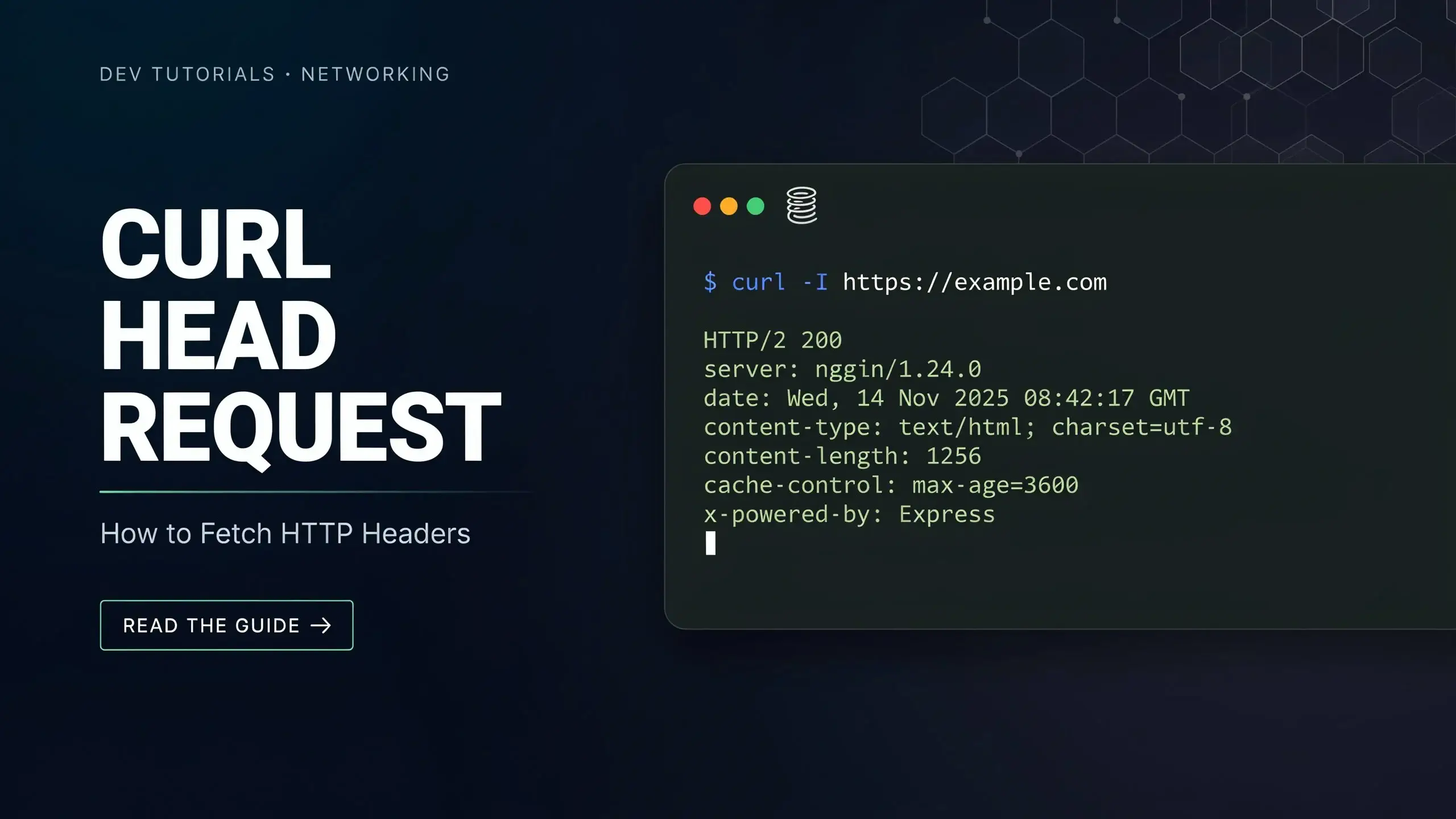
Here is a typical HEAD response. The first line is the status; everything after it is a header.
$ curl -I https://example.com

HTTP/2 200
content-type: text/html; charset=UTF-8
content-length: 1256
last-modified: Mon, 29 Jun 2026 10:14:52 GMT
cache-control: max-age=3600
etag: "3f80f-1b6-3e1cb03b"
server: nginx
date: Tue, 30 Jun 2026 09:00:00 GMT- HTTP/2 200: the protocol version and status code. 200 means the resource exists and is reachable.
- content-type: the media type of the resource (here, HTML).
- content-length: the body size in bytes you would download with a GET, useful for size checks before fetching.
- last-modified / etag: caching validators that let you detect whether the resource changed.
- cache-control: how long the response may be cached.
Common Real-World Uses
Check if a URL is alive (status code only)
For monitoring or link checking, you usually want just the number. Discard the body, silence the progress meter,
and print the status code with the -w write-out variable.
curl -I -o /dev/null -s -w "%{http_code}\n" https://example.com
# Output: 200
Follow redirects to the final destination
By default curl shows the first response, so a redirect prints a 301 or 302 and stops. Add -L to follow the Location header. With HEAD,
this prints the headers for every hop, so you can trace the whole redirect chain.
curl -IL http://example.com

# HTTP/1.1 301 Moved Permanently
# location: https://example.com/
#
# HTTP/2 200
# content-type: text/html
Check a file's size before downloading
Read the content-length
header to decide whether a download is worth it, no need to start the transfer.
curl -sI https://example.com/large-file.zip | grep -i content-length
# content-length: 5242880
Inspect one specific header
Pipe the silent output to grep
-i (case-insensitive, since header names are not case sensitive) to isolate exactly what you need.
curl -sI https://api.example.com | grep -i x-ratelimit
# x-ratelimit-remaining: 4998
Send headers, auth, or a custom User-Agent
HEAD requests accept the same flags as any other curl request. Combine them freely.
# Custom request header
curl -I -H "Accept: application/json" https://api.example.com

# Basic authentication
curl -I -u username:password https://example.com/private

# Bearer token
curl -I -H "Authorization: Bearer YOUR_TOKEN" https://api.example.com

# Pretend to be a browser
curl -I -A "Mozilla/5.0" https://example.com
Validate a list of URLs in bulk
Because HEAD downloads nothing, it is ideal for checking many links quickly in a shell loop.
while read url; do
  code=$(curl -I -o /dev/null -s -w "%{http_code}" --max-time 5 "$url")
  echo "$code  $url"
done < urls.txt

# 200  https://example.com
# 404  https://example.com/missing
# 301  https://example.com/old-page
HEAD vs GET in Curl
The two methods are deliberately similar. The table below summarizes when to pick each one.
HEAD (curl -I) |
GET (curl) |
|
|---|---|---|
| Returns headers | Yes | Yes |
| Returns body | No | Yes |
| Bandwidth used | Minimal | Full resource |
| Best for | Status checks, file size, caching, link validation | Actually retrieving content |
| See headers + body together | n/a | curl -i |
Note the difference between the two similar-looking flags: capital -I sends a HEAD request and
shows headers only, while lowercase -i sends a normal GET and
shows the headers plus the body.
When a HEAD Request Fails
HEAD is part of the HTTP standard, but not every server handles it well. Watch for these cases:
- 405 Method Not Allowed: the server or endpoint does not permit HEAD. Fall back to a GET, or check the allowed methods, see our guide on the 405 Method Not Allowed error.
- HEAD is silently rejected: some servers and CDNs answer GET but not HEAD. If a HEAD looks
wrong, confirm with a real GET (
curl -i). - Wrong content-length: a few servers report a body length on HEAD that does not match the GET.
Treat
content-lengthfrom HEAD as a strong hint, not a guarantee. - The command seems to hang: you almost certainly used
-X HEADinstead of-I. Switch the flag.
Frequently Asked Questions
What is the curl command for a HEAD request?
curl -I https://example.com.
The -I flag (or --head) requests only the
response headers.
What is the difference between -I and -i in curl?
Capital -I sends a HEAD
request and prints headers only. Lowercase -i sends a normal GET and
prints the headers followed by the body.
Why does curl -X HEAD hang?
With -X HEAD curl still
expects a response body and waits for data the server never sends. Use -I instead, which knows a
HEAD response has no body.
How do I follow redirects with a HEAD request?
Add the -L flag: curl -IL https://example.com.
Curl prints the headers for each hop in the redirect chain.
Can I send authentication with a HEAD request?
Yes. HEAD accepts every curl auth flag, for example -u user:pass for basic auth
or -H "Authorization: Bearer
TOKEN" for a token.
How do I show only the status code?
Combine HEAD with write-out: curl -I -o /dev/null -s -w
"%{http_code}\n" https://example.com.
Summary
A curl HEAD request is the fastest way to inspect a resource's HTTP headers, its status, type, size, modification
date, and caching, without downloading the body. Use curl -I or curl --head, and avoid -X HEAD, which can hang.
From there, layer on the flags you already know: -L to follow redirects,
-s with -w for status-code-only
output, -H and -u for headers and auth, and
a grep pipe to isolate a
single header. With those few patterns you can check links, monitor uptime, measure file sizes, and trace
redirects, all in one line.