What ChatGPT Codex Actually Is
Three different things get sold under similar names. Mixing them up is why most setup guides feel finished after install, then fail on the first real task.
| What you opened | What it is | How you know it worked |
|---|---|---|
| ChatGPT Codex | OpenAI's coding agent. IDE extension + CLI, same login cache. | Command Palette shows Codex: Open Codex Sidebar (or Codex: New Codex Agent). |
| Cursor Agent / Composer | Cursor's own agent. Uses Cursor's model list (Claude, GPT-5, Gemini, …). | The right-hand Cursor agent panel, not the Codex extension view. |
| GPT-5-Codex as a model | A coding-tuned GPT-5 family model you can call from Cursor chat or a custom provider. | It appears in Cursor's model selector. No Codex sidebar, no Codex CLI. |
Official docs list Cursor as a supported editor and point to the Marketplace listing
openai.chatgpt. A
Codex-named model in Cursor's selector does not mean that extension is installed. The visible checkpoint is the
Codex command or sidebar, documented on
OpenAI's Codex IDE page.
Which Setup Should You Use?
- Official Codex extension: default path. Open files and selections become context, edits show as a diff you can keep or reject, and you can hand a longer task to Codex cloud from the same chat.
- Codex CLI next to Cursor: same agent from the terminal. Useful for reviews, scripts, and
CI. Shares
~/.codexauth with the extension. - GPT-5-Codex in Cursor's model list: only if you want that model inside Cursor's own chat, not the Codex agent. This is a provider/model setting, not an install of Codex.
If your goal is "use ChatGPT Codex in Cursor", start with the extension. Skip custom API gateways unless you already centralize billing through one and know the exact model ID it exposes.
Install the Official Codex Extension
Install from OpenAI's listing, not a similarly named third-party extension.
- Open Cursor and go to Extensions (
Ctrl+Shift+X/Cmd+Shift+X). - Search for the official Codex / ChatGPT extension and confirm the ID is
openai.chatgpt. Direct install: cursor:extension/openai.chatgpt or the VS Code Marketplace page. - Reload Cursor if prompted, then open a real project folder. An empty window only proves the UI can open.
- Open Codex: click the Codex icon, or run Codex: Open Codex Sidebar from the Command Palette
(
Ctrl+Shift+P/Cmd+Shift+P). - Sign in with ChatGPT, or choose Use API Key if you bill through the OpenAI API. Cloud tasks need ChatGPT sign-in. A successful install does not tell you which plan, quota, or region you have; the prompt in the sidebar does.
The CLI and the extension reuse the same cached login
(~/.codex/auth.json or
the OS keyring). Logging out of one signs you out of the other. Details:
Codex authentication.
Cursor 3.15+: the sidebar may not open on the right
From Cursor 3.15, the secondary sidebar (right panel) is reserved for Cursor's own agent. Codex used to dock there; that was accidental. Codex: Open Codex Sidebar can look like a no-op because the view container it registers no longer exists. This is documented in Cursor's forum thread on 3.15.
- Look for Codex under Explorer on the left. Drag its section header onto the Activity Bar to give it a top-level icon.
- If it will not move: View: Reset View Locations, then Developer: Reload Window.
- For a side-by-side layout, run Codex: New Codex Agent (not Open Sidebar), then View: Split Editor Right or drag the tab to the editor edge.
Create a Recovery Point Before the First Edit
OpenAI's IDE docs recommend Git checkpoints before and after a first task. A rollback is only safe if you know what was already dirty.
git status --shortCommit or stash work you care about, or use a throwaway clone. For the first run, pick a low-risk file with a test you can execute in seconds. Skip migrations, auth, billing, deploy config, and repo-wide refactors. You are validating the loop, not proving the agent can own a large change.
Give Codex Context It Can Verify
Open the file, select the smallest function that matters, then add that selection to the thread (Command Palette: Add to Codex Thread). The extension also attaches open files. Name the behavior, state what must not change, and ask for an observable result.
Start with an explanation-only request. It is cheap and shows whether the selected code actually reached Codex:
Explain what the selected function returns for an empty array.
Point to the branch that decides the result. Do not edit any files.
The answer should name the file and symbol on screen. A fluent explanation of the wrong function is a context failure, not a successful setup. If it matches, send a bounded edit:
In the open file, make the selected function return [] for empty input.
Keep the public signature unchanged. Smallest relevant edit.
Show the diff and name the existing test that covers this.
Then run: npm test -- path/to/relevant.test.ts
Report the command and the actual output. If it cannot run, stop and say why.
Replace the test command with whatever this repo already uses. A proposed test is not a run. A passing narrow test does not prove unrelated behavior is intact. "Improve this file" has no stopping point; "change this behavior, keep this interface" does.
Put durable project rules in AGENTS.md at the repo root
(stack, test command, files Codex must not touch). That file is what Codex reads across the IDE and CLI. Cursor
rules (.cursor/rules)
steer Cursor's own agent, not Codex. See also
how we configure Claude
inside Cursor if you keep both agents around.
Review the Diff as Evidence
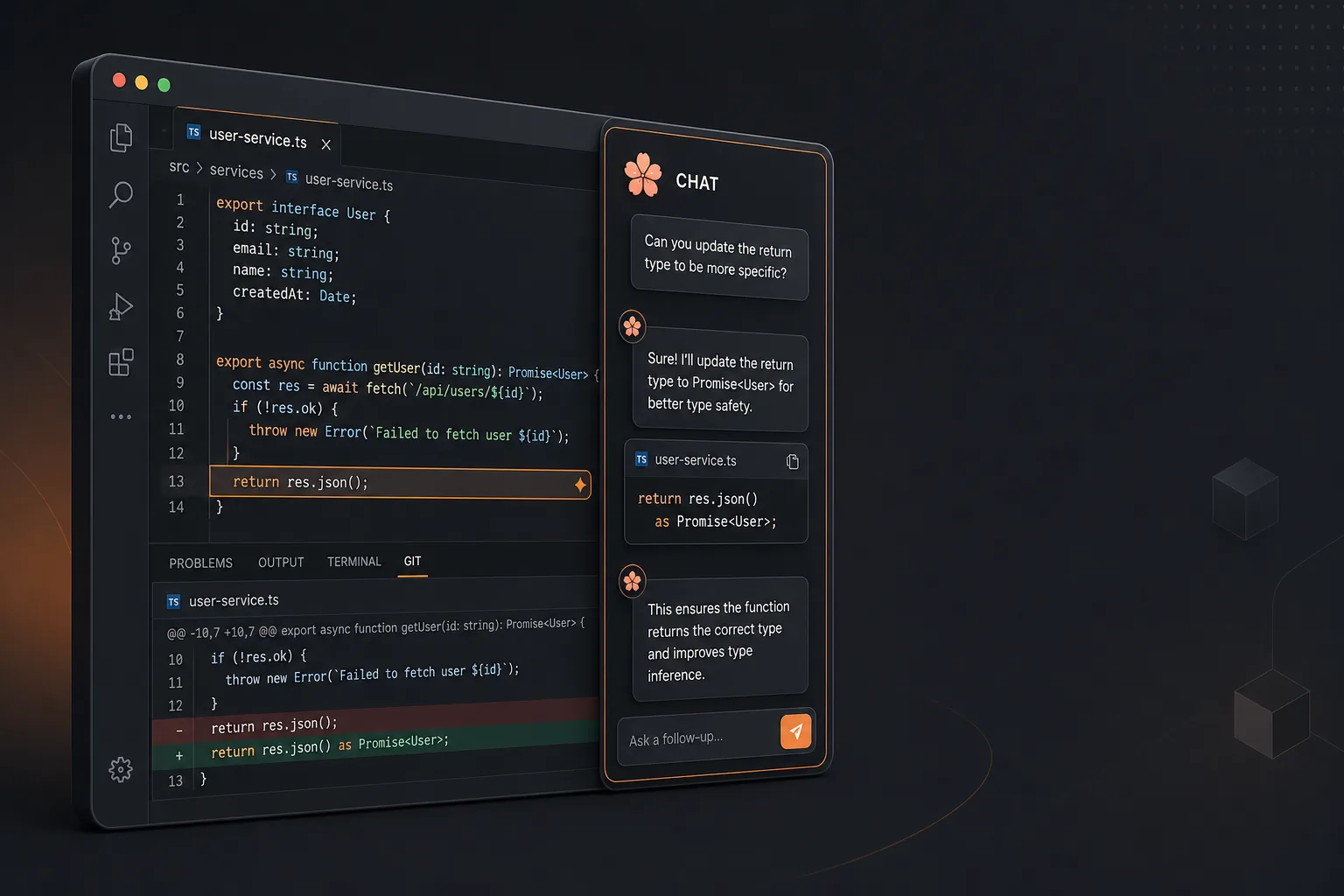
The Codex IDE flow presents a proposed change in the editor. A confident final message is not a substitute for reading the files. Five passes:
- Scope: only the files the task needed?
- Behavior: does the code do the asked outcome, including the empty/error case?
- Constraints: signature, deps, config, unrelated behavior still the same?
- Verification: which command actually ran, and did stdout show pass, fail, or "could not execute"?
- Assumptions: types, callers, framework conventions it invented that you still need to decide?
Reject a broad diff even if some lines are useful. A narrower second request is cheaper than manually splitting a
mixed patch. Then run git status --short again so
you have a before/after inventory. If lint, typecheck, or a targeted test exists for the touched code, run it
yourself if Codex did not.
The first workflow is done when all of these are true: the sidebar (or editor tab) opens in this project, the explanation matched the selection, the edit stayed inside the boundary, you can name the check that ran, and you can keep or reverse the change without losing unrelated work.
Codex CLI Next to Cursor
Same agent, terminal surface. Official install options from the Codex CLI docs:
# npm (Node.js 18+)
npm install -g @openai/codex

# Homebrew
brew install --cask codex

# Windows (PowerShell)
powershell -ExecutionPolicy ByPass -c "irm https://chatgpt.com/codex/install.ps1 | iex"

codex --version
codex login
Run codex from the
project root. Headless or SSH sessions that cannot complete the localhost OAuth callback should use
codex login --device-auth.
API key mode:
printenv OPENAI_API_KEY | codex login --with-api-key
User defaults live in ~/.codex/config.toml
(model, approval policy, sandbox). Project overrides go in
.codex/config.toml and
load only when the repo is trusted. Do not let the agent run generated shell commands without a confirmation step.
Using GPT-5-Codex as a Cursor Model
Some teams only want the coding-tuned model inside Cursor Chat / Agent, without the Codex extension. That is a different product surface:
- Cursor Settings → Models. If GPT-5-Codex (or the current Codex-labeled GPT-5 variant) is in the list and your Cursor plan includes it, select it there.
- Otherwise add an OpenAI-compatible provider: base URL of the form
https://api.example.com/v1, a dedicated API key, then the model ID the provider actually lists (oftengpt-5-codexplus a reasoning tier such as low / medium / high). Verify the ID in that provider's dashboard; names drift. - Send a one-line request in Cursor chat. If the request never leaves your machine, you configured the wrong provider, not "Codex".
Use a dedicated key, keep it out of git, and treat third-party gateways as a billing proxy: they do not give you Codex's sidebar, cloud handoff, or CLI review commands.
Troubleshooting
Fix the earliest broken checkpoint. Reinstalling or writing a bigger prompt usually hides the real failure.
The Codex command is missing
Confirm openai.chatgpt
is installed and enabled in the active Cursor profile, then reload. If only a Codex-named model appears in the
chat picker, you installed a model, not the extension.
The sidebar opens but sign-in never finishes
Follow the prompt currently shown. Capture the exact error before changing settings. Do not paste a random API key or a third-party "bridge" unless that is the setup you chose. Corporate proxies that intercept TLS often break the browser callback; try another network only if your org allows it, or use device-code login on the CLI.
Codex talks about the wrong code
Close extra files, select one block, and ask it to name file + symbol before it edits. If it still misses, restart the sidebar and repeat the explanation-only check. A working sidebar can still receive the wrong context.
The proposed change is too large
Reject it. Split the request: one file, one behavior, interfaces that must not change. For risky code, use two turns: plan with no edits, then authorize the specific patch.
It suggests a test but does not run it
Ask whether the command exists in this project and to execute it. If permissions block it, that verification step is unfinished. You can run the command in Cursor's terminal; record the real output instead of treating a recommendation as a pass.
When to Use Codex vs Cursor's Agent
- Codex: you want OpenAI's agent, ChatGPT-plan usage, a reviewable local diff, CLI/CI, or a cloud task you can resume later.
- Cursor Agent: you want Cursor's multi-model routing, Claude, repo rules, and the native Composer/Agent UI. That is still the faster path for many day-to-day edits.
Running both is normal. Keep their instruction files separate so you do not expect
.cursor/rules to
constrain Codex, or AGENTS.md
to constrain Cursor.
Summary
Install openai.chatgpt,
open Codex in the project, checkpoint git, prove context with an explanation-only prompt, then ask for one
bounded edit and inspect the diff. If the right-hand sidebar is empty on Cursor 3.15+, pin Codex on the left or
open it as an editor tab. The CLI is the same agent in a terminal. Selecting GPT-5-Codex as a Cursor model is
useful, but it is not Codex.